ATS Friendly Resume: How to Pass Applicant Tracking Systems
How applicant tracking systems read a resume, what breaks parsing, which file format to send and how to test your own PDF before you apply.
Updated October 17, 2026
Most medium and large employers, and many small ones, receive applications through an applicant tracking system (ATS). The system turns your file into text, splits it into fields like name, job titles and dates, and stores it so recruiters can search and sort candidates. An ATS friendly resume is simply one that survives that conversion with nothing lost or scrambled. This guide explains what the software actually does, what breaks it, and how to check your own file in two minutes before you apply.
What an applicant tracking system does with your resume
When you upload a resume, three things usually happen.
- Text extraction. The system pulls the text out of your PDF or Word file. If the text is inside an image, or the PDF is a scan, there is nothing to pull out.
- Parsing. It guesses which part is your name, your email, each job, each employer and each date. It does this by looking for familiar section headings and patterns like "Jan 2021 to Mar 2024".
- Storage and search. The parsed profile goes into a database. Recruiters filter by location, search for skills or job titles, and open the resumes that look relevant. Some systems also rank applicants against the job post, but the ranking rules differ from one product and one employer to the next.
Popular systems include Workday, Greenhouse, Lever, iCIMS, Taleo, SmartRecruiters and SAP SuccessFactors. They differ in detail, but they all depend on the same first step: getting clean text out of your file.
What breaks parsing
These are the problems that most often turn a good resume into a confusing profile.
| Problem | What happens | What to do instead |
|---|---|---|
| Text inside images | The system sees nothing, often including your name | Keep all important text as real text |
| Scanned or photographed PDF | The whole file is a picture | Export from the editor, never scan a printout |
| Tables used for layout | Cells are read in the wrong order or skipped | Use a single column with plain headings |
| Text boxes and shapes | Often dropped or moved to the end | Put the text directly on the page |
| Headers and footers | Some systems ignore them, so contact details vanish | Put your name and contact details in the main body |
| Two or three columns | Lines from the left and right columns get mixed | Use one column, or test the order carefully |
| Creative section names | "My journey" is not recognized as experience | Use standard names like "Experience" |
| Skill bars and ratings | A bar or five stars carries no readable meaning | Write the skill, and a level in words if needed |
| Unusual fonts without embedding | Characters turn into boxes or wrong letters | Use a PDF with embedded fonts |
Columns read in the wrong order
Columns deserve a closer look because they are the most common surprise. A PDF stores text as positioned pieces, not as paragraphs. When a parser reads across the page, it may take the first line of your left column, then the first line of your right column, then the second line of the left one. Your job title ends up next to a skill, and a date lands under the wrong employer. Some systems handle columns well. You cannot know which one an employer uses, which is why one column is the safe default.
Headers, footers and contact details
Word processors make it tempting to put your email and phone number in the page header. Several parsers skip the header and footer areas entirely. If that happens, a recruiter may find your resume but have no way to contact you. Keep contact details in the first lines of the page body.
File format: PDF or Word
A PDF that was exported from an editor contains real text and is read correctly by modern systems. It also looks the same on every screen, which matters when a person opens it. Send a PDF unless the job post or the form says otherwise.
Some older systems and some recruitment agencies still ask for a .docx file, often because they edit resumes before sending them to clients. If you are asked, send Word. Avoid .pages, .odt, images and zipped files.
Two things to avoid with PDFs:
- Scans and "print to image". If you can't select a single word in your PDF, the system can't either.
- Missing fonts. A PDF should embed its fonts. Without them, letters can be replaced or shown as empty boxes, especially for accented letters and non-Latin scripts.
Section names and order
Parsers look for familiar headings. Use plain names and keep them on their own line:
- Summary (or Profile)
- Experience (or Work Experience)
- Education
- Skills
- Certifications
- Projects
- Languages
For most people, the order is contact details, summary, experience, skills, education, then optional sections. Recent graduates can move education and projects higher. Whatever order you choose, the name of each section should say exactly what is in it.
Within experience, give each job the same structure: job title, employer, city, dates, then bullets. Keeping the order identical for every role helps the parser split jobs correctly.
Dates
Dates are how a system works out your total experience and the length of each job. Make them easy to read:
- Use month and year for each job: "Mar 2021 to Jun 2024" or "03/2021 to 06/2024".
- Use one format everywhere on the page.
- For your current job, write "Present".
- Avoid seasons ("Summer 2022") and years alone when you can give months.
- Keep dates on the same line as the job or directly below it, not in a separate column far to the right.
Keywords without stuffing
Recruiters search the database with words from the job post: a job title, a tool, a certification, a license. If those words are not in your resume, you may not show up, even if you have the skill.
How to use keywords well:
- Read the job post and mark the skills, tools and qualifications it repeats.
- For each one you really have, make sure the exact term appears in your skills section and in at least one experience bullet.
- Use the employer's wording when it is accurate. If the post says "accounts payable", don't only write "AP".
- Write out an abbreviation once with the full name, for example "Certified Public Accountant (CPA)", so both versions can be found.
- Keep your job title close to the title in the post, as long as it is honest.
What not to do: hide keywords in white text, paste the job description at the bottom, or repeat the same term ten times. Modern systems and recruiters notice these tricks, and a resume that reads badly to a human loses the interview anyway.
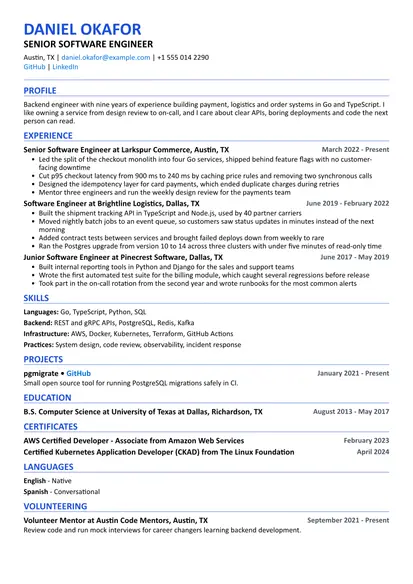
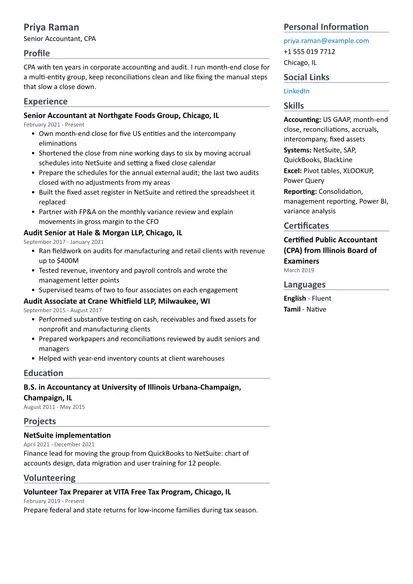
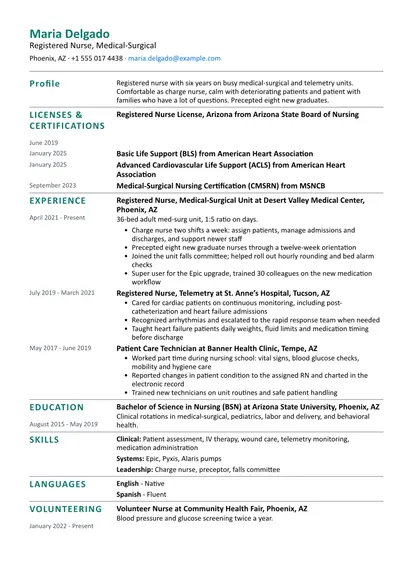
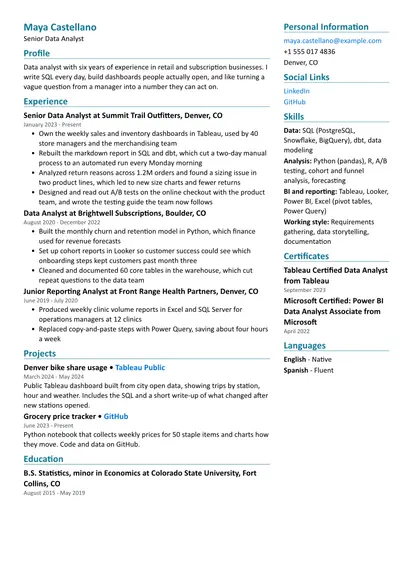
Profession templates show which terms matter in each field. See the software engineer template, the accountant template, the registered nurse template and the data analyst template for skill tables and example bullets.
Formatting that stays safe
- One column, clear headings and plenty of white space.
- A common, readable font at 10 to 12 points for body text.
- Standard bullet points rather than custom symbols.
- Bold for job titles and headings is fine. Avoid putting meaning only in color.
- Links written as text, such as your LinkedIn or portfolio address, so they still make sense if the link is stripped.
- No photo for jobs in the US, the UK, Canada and Australia. Countries that expect a photo are covered in the German CV guide and the Middle East CV guide.
How to test your own PDF
You don't need special software to see roughly what a parser sees. This simple test catches most problems:
- Open your PDF in a browser or PDF reader.
- Select all text (Ctrl+A or Cmd+A) and copy it.
- Paste it into a plain text editor such as Notepad or TextEdit in plain text mode.
- Read it from top to bottom.
Check these points:
- Your name, email and phone number appear, near the top.
- Every section heading is there and on its own line.
- Each job reads in order: title, employer, dates, bullets.
- Lines from different columns are not mixed together.
- No words are missing, and there are no strange symbols in place of letters.
- Nothing came out as one long line with no breaks.
If the pasted text is in the right order and complete, most systems will read it well. If you can't select the text at all, the file is an image and needs to be exported again from your editor.
Another useful check: upload your resume to a real application form that offers to "autofill from resume". Look at what it fills in. Wrong job titles or empty fields point to the same issues as above.
Common myths
"You need an ATS score of 80 or more." There is no universal score. Each employer configures its own system, and many don't rank applicants automatically at all. Online checkers apply their own rules, which can be a helpful prompt but are not what any particular employer sees.
"The ATS rejects most resumes before a human sees them." Systems can filter on hard requirements, such as work authorization or a required license, when an employer sets that up. Most of the sorting is still done by recruiters searching and reading. A clear resume that matches the job is what gets through.
"An ATS resume has to be ugly." It has to be readable as text. Clean typography, good spacing and a consistent structure work for both the system and the person.
"Keywords are all that matter." Keywords help you get found. After that, a human decides, and they look for results, scope and relevance.
Building an ATS friendly resume with this site
The builder on resumeforfree.com typesets every resume into a PDF with real, selectable text and embedded fonts, so nothing is stored as an image. It includes an "ATS Friendly" layout with a single column and plain section headings, and you can rename sections or change their order. The site does not score or check your resume against a job post; run the copy and paste test above on the finished file. You can start a resume in the builder for free without creating an account.
Checklist before you apply
- The PDF has selectable text and embedded fonts
- Contact details are in the body, not the header or footer
- One column, or a two column file that passes the copy and paste test
- Standard section names in a logical order
- One date format with month and year for every job
- The job post's key terms appear where they are true for you
- No skill bars, text boxes or important text inside images
- The file name includes your name, for example "Maria-Lopez-Resume.pdf"